
Crafted
How to build an overview page that helps users find what they need
9 April 2026
An overview page is more than a table of contents. It's a chance to orient your readers, set context, and guide them to what they need.
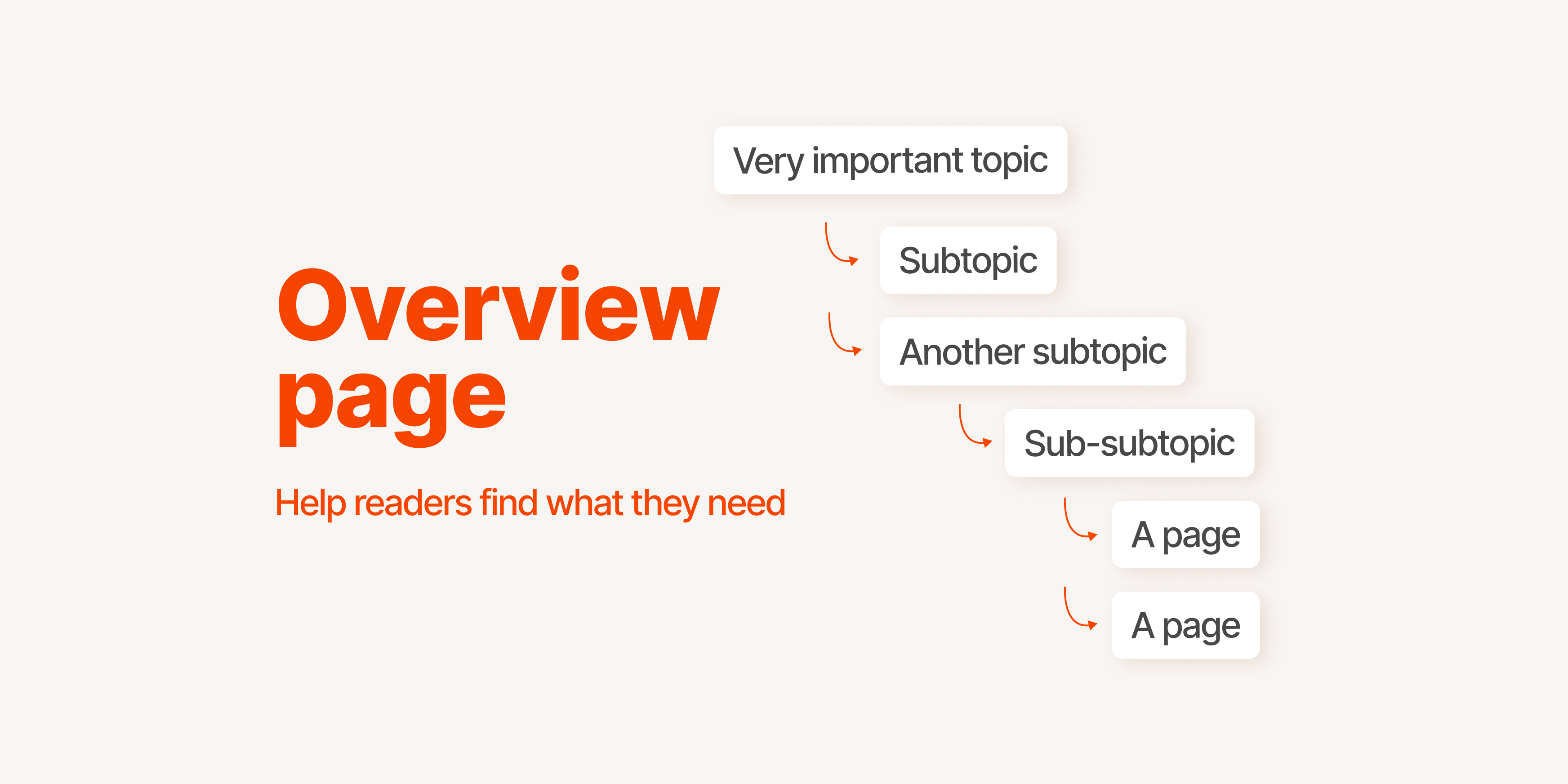
Crafted is a series of tips to make your sites more accessible, usable, and clear. The Isomer team studies these topics and writes each guideline, word by word.
Why Overview pages matter
Most people visit a government website looking for something specific. When your agency has many pages under a single topic, users need a way to understand how that content is organised and how to find what they need.
Overview pages help readers navigate nested topics. We've made Overview pages flexible so you can introduce topics and frame content more meaningfully. Whether you use the default layout or build something custom, the goal stays the same: help readers find what they're looking for, with as little friction as possible.
The default layout: simple and effective
For most agencies, the default overview page does exactly what it needs to. It automatically lists your child pages and gives you space to add a short introduction.
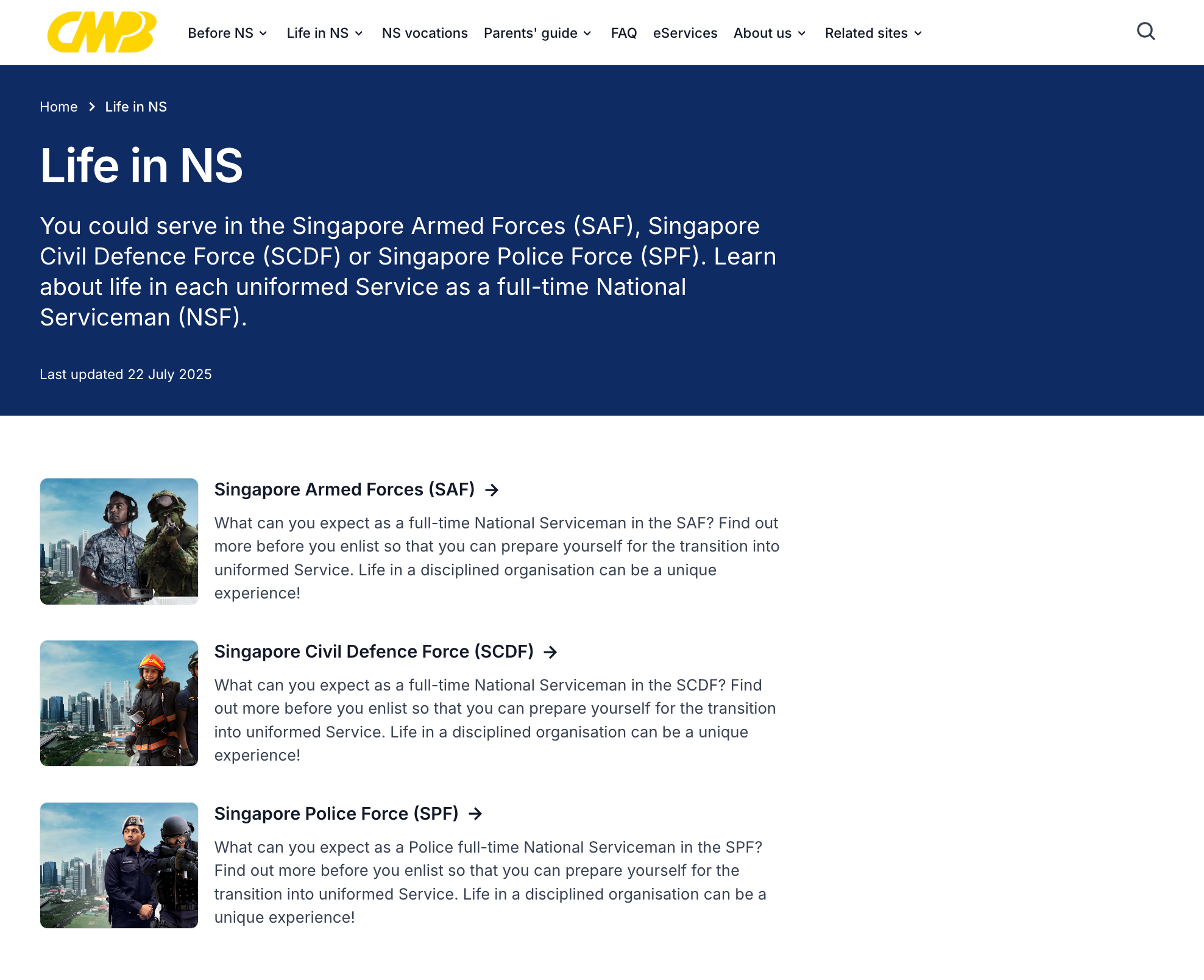
CMPB (Central Manpower Base) showcases National Service using a default Overview page.
Write a short introduction to the topic
Two to three lines are enough. Tell readers what this section covers and who it's for, so they can confirm they're in the right place before they start clicking. If you find yourself writing more than that, it's a sign that content belongs on its own page, not on the overview.
If the introduction isn't very long, you can use the page Summary for this.
Make sure every child page has a useful summary
Each child page appears with its title and summary. That summary is what helps users decide which page to click. A summary that just restates the title ("This page is about the application process") doesn't add value. One that spells out what users will find ("Step-by-step guide to applying, including eligibility criteria and required documents") does.
Resist adding more
You can include additional content blocks on the default layout, but treat this as a last resort. Every extra block you add is something users have to read through before they reach the pages they came for. Ask yourself: does this help readers decide where to go next? If not, it doesn't belong here. The detail can live on the child pages instead.
Going custom: for agencies that need more flexibility
Some agencies might have content that spans different audiences or topics that don't sit neatly in a single list. For these cases, you can build a fully custom overview page. To achieve this, you will need to remove the default child pages block and build your overview page from scratch.
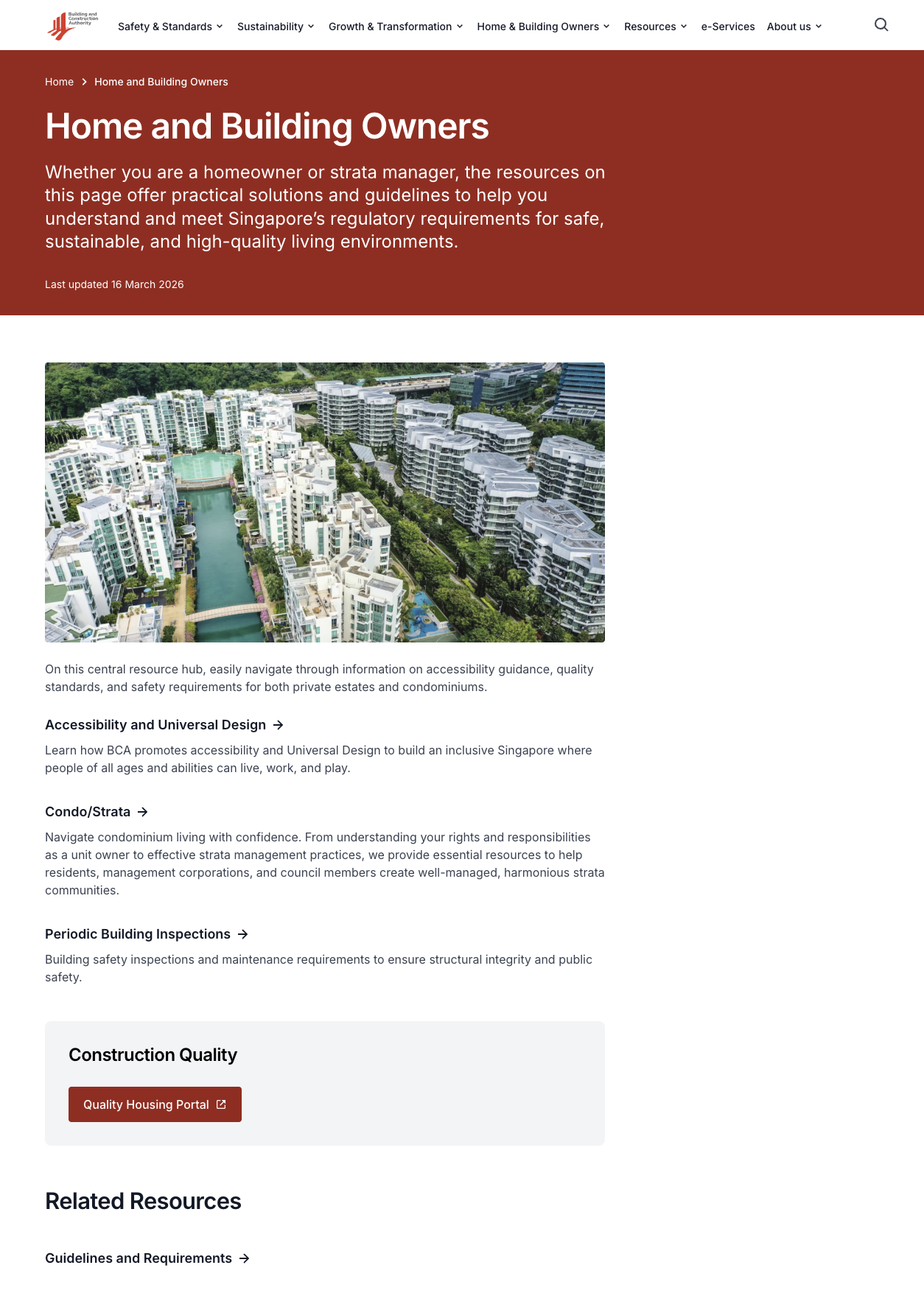
BCA (Building and Construction Authority) uses a custom layout.
Further group pages by audience, topic, or task
If your content naturally breaks down, reflect that with clear headings. This helps users to quickly spot the section most relevant to them.
Add context where it helps users decide
Add a sentence or visual between groups to orient users before they dive in. Keep this brief; the detail belongs on the child pages.
Make sure all relevant pages are findable
Don't leave out pages that users might need. A page that isn't linked anywhere becomes impossible to find.
Keep it scannable
Custom pages can grow long. Use clear headings, keep summaries concise, and move detailed content to child pages.
However you set up your overview page, the goal stays the same: help users find what they need, quickly and confidently. When in doubt, less is more.
Have questions about setting up your overview page? Reach out to the Isomer team.